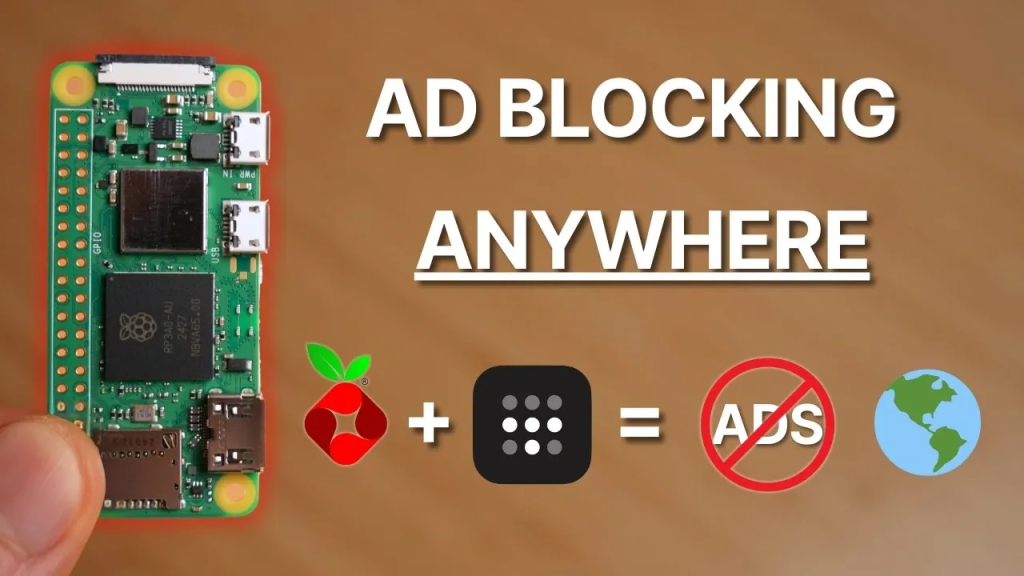


In today’s digital age, ads seem to be everywhere, whether you’re browsing your favorite websites, watching a video, or even checking your emails. These interruptions not only affect your browsing experience but can also compromise your privacy. Fortunately, there’s a way to regain control of your online experience and block ads no matter where you are using a combination of Pi-hole and Tailscale, with the Raspberry Pi Zero 2 W as the cornerstone of the system. In this guide, we’ll walk you through setting up a personalized, portable ad-blocking solution that works across all devices and networks.
TL;DR Key Takeaways:
- Pi-hole and Tailscale Integration: This combination creates a network-wide ad-blocking solution, extending protection across all your devices, even when you’re on public Wi-Fi or mobile networks.
- Raspberry Pi Zero 2 W: The compact Raspberry Pi Zero 2 W serves as the foundation, providing a cost-effective and powerful base for the ad-blocking system.
- How Pi-hole Works: Pi-hole blocks ads and trackers at the DNS level, ensuring that ads don’t even get a chance to load.
- Remote Access with Tailscale: Tailscale extends Pi-hole’s benefits beyond your home network, ensuring secure, encrypted access to ad-blocking functionality no matter where you are.
- Simple Setup: Setting up Pi-hole with Tailscale on a Raspberry Pi Zero 2 W requires basic knowledge of Raspberry Pi OS and networking, but it’s easy to implement with step-by-step guidance.
Why Combine Pi-hole and Tailscale?
Pi-hole is a powerful, network-wide ad blocker that works by filtering DNS requests. This means that it stops ads and trackers before they even have a chance to reach your devices. Whether you are browsing, streaming, or working online, Pi-hole ensures a smoother, ad-free experience by blocking unwanted content at the DNS level.
Tailscale is a VPN service that provides secure, encrypted connections between devices. By combining Tailscale with Pi-hole, you can extend Pi-hole’s ad-blocking capabilities beyond your home network. No matter where you are — whether you’re working from a café, at a hotel, or traveling abroad — Tailscale ensures that your devices stay connected to Pi-hole, giving you continuous protection from ads and trackers.
What You’ll Need to Get Started:
To create this system, you’ll need the following hardware and software components:
- Raspberry Pi Zero 2 W (or similar Raspberry Pi model)
- MicroSD Card (at least 16GB)
- Micro USB power cable for the Raspberry Pi
- Stable Internet Connection for software downloads and updates
- Basic knowledge of Raspberry Pi OS, SSH, and network configuration
If you’re new to Raspberry Pi or network setups, don’t worry—this guide provides clear steps, and there are plenty of resources to help you along the way.
Step-by-Step Guide to Set Up Pi-hole with Tailscale
1. Setting Up Pi-hole on Raspberry Pi
The first step is to install Pi-hole on your Raspberry Pi. Start by downloading Raspberry Pi OS and flashing it onto your microSD card. After booting the Raspberry Pi:
- Assign a unique hostname to easily identify it on your network.
- Connect the Raspberry Pi to your Wi-Fi network.
- Enable SSH access to manage the Pi remotely.
Once the basic setup is complete, follow the official Pi-hole installation guide. During installation, assign a static IP address to your Raspberry Pi to ensure Pi-hole consistently handles DNS traffic.
Access the Pi-hole admin panel through your web browser to configure DNS settings, add blocklists, and monitor traffic. Pi-hole lets you block specific ad networks or trackers, enhancing your ad-blocking setup.
2. Integrating Tailscale for Remote Access
To extend Pi-hole’s functionality beyond your home network, you’ll need to integrate Tailscale. Tailscale creates a private, encrypted network between your devices. After installing Tailscale on your Raspberry Pi:
- Log into your Tailscale account and configure your Raspberry Pi to connect with the Tailscale network.
- In Pi-hole settings, allow DNS queries from all devices on your Tailscale network.
This step ensures that devices connected to your Tailscale network—whether at home or on the go—are protected by Pi-hole’s ad-blocking features.
3. Testing and Optimizing Your Setup
After setting everything up, you should test the system to ensure it’s working correctly:
- Connect a device to your home Wi-Fi and verify that ads are being blocked by Pi-hole.
- Switch to Tailscale and connect to a different network (e.g., mobile data or public Wi-Fi). Check that ad-blocking remains active.
- Use the Pi-hole admin panel to monitor DNS queries and add additional blocklists to block specific ads or trackers.
The Pi-hole query log helps you identify domains that might bypass your standard filters, and you can manually block them for greater control.
Key Benefits of This Setup
By combining Pi-hole and Tailscale on a Raspberry Pi, you create a seamless ad-blocking solution that offers numerous advantages:
- Ad-Free Browsing: Enjoy ad-free browsing across all your devices, whether you’re at home, on a mobile network, or using public Wi-Fi.
- Privacy Protection: Block trackers and improve privacy by filtering DNS queries at the network level.
- Secure Access Anywhere: Tailscale gives you secure, encrypted access to your home network, ensuring protection on the go.
- Centralized Control: The Pi-hole admin panel lets you fine-tune DNS filtering, giving you full control over your ad-blocking experience.
Conclusion
With this Pi-hole and Tailscale setup, you can take control of your online experience by blocking ads and enhancing privacy across all your devices. Whether you’re working from home, traveling, or using public Wi-Fi, this solution ensures a smooth, uninterrupted, and secure browsing experience. The compact and affordable Raspberry Pi Zero 2 W makes this setup both practical and cost-effective, offering a seamless ad-free experience anywhere you go. By following the steps in this guide, you’ll be able to implement a powerful ad-blocking solution that goes with you, protecting your privacy and enhancing your internet experience wherever you are.